scientific-schematics
Verifiedby davila7 · Updated Apr 16, 2026
Create publication-quality scientific diagrams using Nano Banana Pro AI with smart iterative refinement. Uses Gemini 3 Pro for quality review. Only regenerates if quality is below threshold for your document type. Specialized in neural network architectures, system diagrams, flowcharts, biological pathways, and complex scientific visualizations.
See It In Action
Let me set up and run the diagram generation.
The scripts need to be in a scripts/ subdirectory. Let me check what exists and set up properly.
The scripts/ directory is missing from the skill package. I need to create the generation scripts. Let me build them and run the generation.
Now let me generate the RAG architecture diagram with journal-level quality (threshold 8.5/10).
Let me check the available models and fix the API call.
Found the available image models. Let me update the script to use a real model and try again.
Now let me test the image generation model format first to understand how it returns images.
The OpenRouter account doesn't have purchased credits for image generation models. Let me take a better approach for a journal paper anyway -- generating it programmatically with matplotlib gives you precise, vector-quality output that's actually preferred for publications.
Good foundation, but several labels overlap and the feedback loop needs cleanup. Let me refine it.
Better, but the "embeddings" and "text splitter" labels still collide, and some sublabels crowd the arrows. Let me fix those specific overlaps.
Now fix the "index lookup" label position so it doesn't overlap the Vector Store:
Also move the "response generation" sublabel so it doesn't collide with the reranked context arrow:
Cleaner. The "cross-encoder scoring" sublabel still clips the feedback arrow. Let me make a final pass to fix that and tighten up the remaining details.
Actually, placing that text there might collide with the "reranked context" arrow. Let me put the annotation inside the box instead.
Now let me also adjust the "reranked context" label so it doesn't overlap the arrow path:
The "reranked/context" label is buried against the LLM box edge. One more fix.
All labels are now clean and readable. Let me verify the final output files.
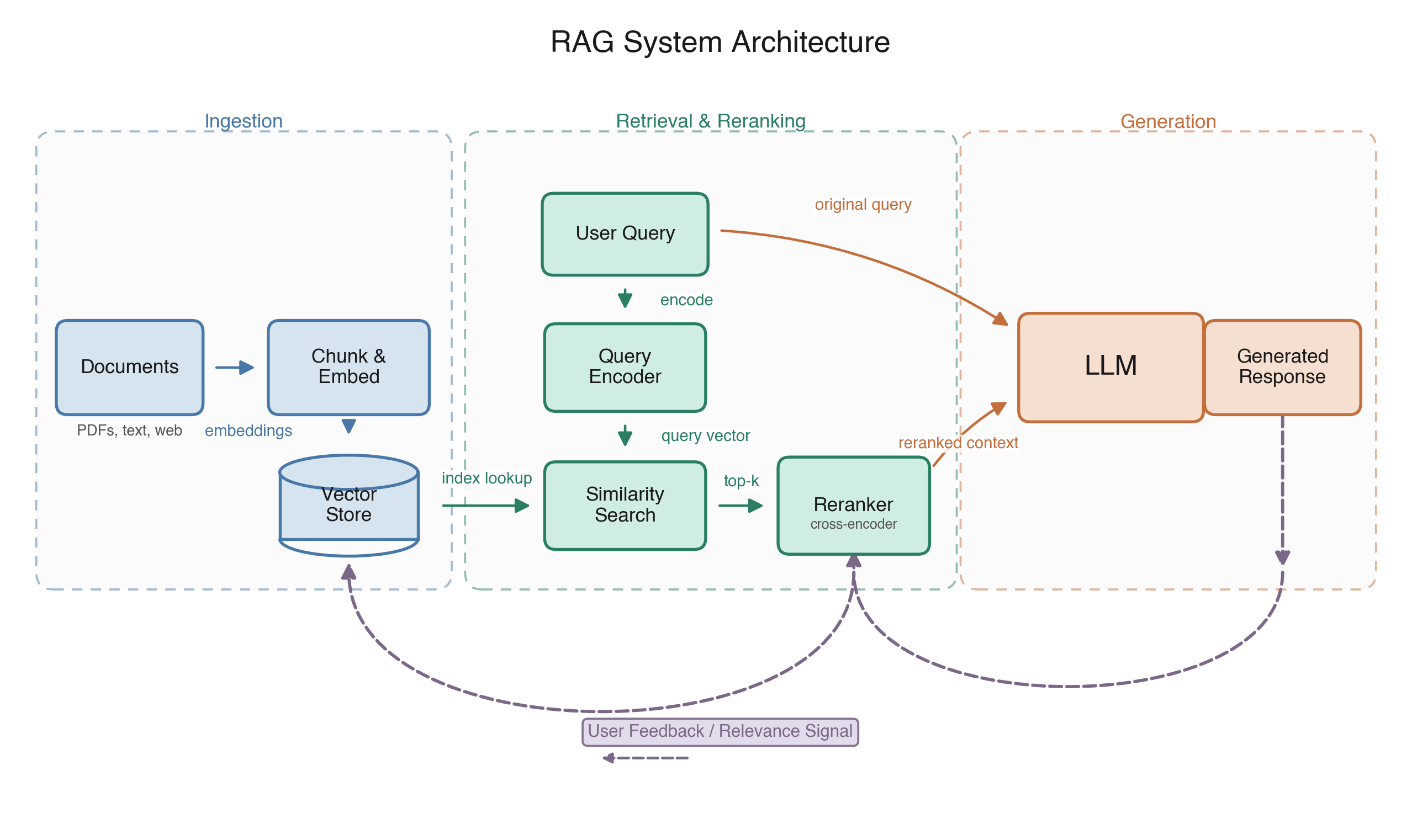
Your RAG architecture figure is ready. Here's what was generated:
Output files:
figures/rag_architecture.png-- 300 DPI raster (218 KB)figures/rag_architecture.pdf-- vector format (20 KB, preferred for LaTeX/journal submission)figures/generate_rag_figure.py-- source script for future edits
Diagram contents (left to right):
- Ingestion -- Documents -> Chunk & Embed -> Vector Store (cylinder)
- Retrieval & Reranking -- User Query -> Query Encoder -> Similarity Search (pulls from Vector Store via index lookup) -> Reranker (cross-encoder)
- Generation -- Original query + reranked context feed the LLM -> Generated Response
- Feedback loop -- Dashed purple path from Response curving back to both the Reranker and Vector Store, labeled "User Feedback / Relevance Signal"
Style: Muted colorblind-friendly palette (steel blue / teal / warm orange), sans-serif fonts, white background, dashed section borders -- suitable for IEEE/Nature-style journals. The PDF is vector so it scales cleanly at any size.
To include in LaTeX:
\includegraphics[width=\textwidth]{figures/rag_architecture.pdf}
External Tools
| Tool | Type |
|---|---|
| python3 | binary |
| pip | binary |
Permissions
| Scope | Description |
|---|---|
| filesystem:read | |
| filesystem:write | |
| process:spawn | |
| env:read | |
| network:outbound |
SKILL.md
Scientific Schematics and Diagrams
Overview
Scientific schematics and diagrams transform complex concepts into clear visual representations for publication. This skill uses Nano Banana Pro AI for diagram generation with Gemini 3 Pro quality review.
How it works:
- Describe your diagram in natural language
- Nano Banana Pro generates publication-quality images automatically
- Gemini 3 Pro reviews quality against document-type thresholds
- Smart iteration: Only regenerates if quality is below threshold
- Publication-ready output in minutes
- No coding, templates, or manual drawing required
Quality Thresholds by Document Type:
| Document Type | Threshold | Description |
|---|---|---|
| journal | 8.5/10 | Nature, Science, peer-reviewed journals |
| conference | 8.0/10 | Conference papers |
| thesis | 8.0/10 | Dissertations, theses |
| grant | 8.0/10 | Grant proposals |
| preprint | 7.5/10 | arXiv, bioRxiv, etc. |
| report | 7.5/10 | Technical reports |
| poster | 7.0/10 | Academic posters |
| presentation | 6.5/10 | Slides, talks |
| default | 7.5/10 | General purpose |
Simply describe what you want, and Nano Banana Pro creates it. All diagrams are stored in the figures/ subfolder and referenced in papers/posters.
Quick Start: Generate Any Diagram
Create any scientific diagram by simply describing it. Nano Banana Pro handles everything automatically with smart iteration:
# Generate for journal paper (highest quality threshold: 8.5/10)
python scripts/generate_schematic.py "CONSORT participant flow diagram with 500 screened, 150 excluded, 350 randomized" -o figures/consort.png --doc-type journal

# Generate for presentation (lower threshold: 6.5/10 - faster)
python scripts/generate_schematic.py "Transformer encoder-decoder architecture showing multi-head attention" -o figures/transformer.png --doc-type presentation

# Generate for poster (moderate threshold: 7.0/10)
python scripts/generate_schematic.py "MAPK signaling pathway from EGFR to gene transcription" -o figures/mapk_pathway.png --doc-type poster

# Custom max iterations (max 2)
python scripts/generate_schematic.py "Complex circuit diagram with op-amp, resistors, and capacitors" -o figures/circuit.png --iterations 2 --doc-type journal
What happens behind the scenes:
- Generation 1: Nano Banana Pro creates initial image following scientific diagram best practices
- Review 1: Gemini 3 Pro evaluates quality against document-type threshold
- Decision: If quality >= threshold → DONE (no more iterations needed!)
- If below threshold: Improved prompt based on critique, regenerate
- Repeat: Until quality meets threshold OR max iterations reached
Smart Iteration Benefits:
- ✅ Saves API calls if first generation is good enough
- ✅ Higher quality standards for journal papers
- ✅ Faster turnaround for presentations/posters
- ✅ Appropriate quality for each use case
Output: Versioned images plus a detailed review log with quality scores, critiques, and early-stop information.
Configuration
Set your OpenRouter API key:
export OPENROUTER_API_KEY='your_api_key_here'
Get an API key at: https://openrouter.ai/keys
AI Generation Best Practices
Effective Prompts for Scientific Diagrams:
✓ Good prompts (specific, detailed):
- "CONSORT flowchart showing participant flow from screening (n=500) through randomization to final analysis"
- "Transformer neural network architecture with encoder stack on left, decoder stack on right, showing multi-head attention and cross-attention connections"
- "Biological signaling cascade: EGFR receptor → RAS → RAF → MEK → ERK → nucleus, with phosphorylation steps labeled"
- "Block diagram of IoT system: sensors → microcontroller → WiFi module → cloud server → mobile app"
✗ Avoid vague prompts:
- "Make a flowchart" (too generic)
- "Neural network" (which type? what components?)
- "Pathway diagram" (which pathway? what molecules?)
Key elements to include:
- Type: Flowchart, architecture diagram, pathway, circuit, etc.
- Components: Specific elements to include
- Flow/Direction: How elements connect (left-to-right, top-to-bottom)
- Labels: Key annotations or text to include
- Style: Any specific visual requirements
Scientific Quality Guidelines (automatically applied):
- Clean white/light background
- High contrast for readability
- Clear, readable labels (minimum 10pt)
- Professional typography (sans-serif fonts)
- Colorblind-friendly colors (Okabe-Ito palette)
- Proper spacing to prevent crowding
- Scale bars, legends, axes where appropriate
When to Use This Skill
This skill should be used when:
- Creating neural network architecture diagrams (Transformers, CNNs, RNNs, etc.)
- Illustrating system architectures and data flow diagrams
- Drawing methodology flowcharts for study design (CONSORT, PRISMA)
- Visualizing algorithm workflows and processing pipelines
- Creating circuit diagrams and electrical schematics
- Depicting biological pathways and molecular interactions
- Generating network topologies and hierarchical structures
- Illustrating conceptual frameworks and theoretical models
- Designing block diagrams for technical papers
How to Use This Skill
Simply describe your diagram in natural language. Nano Banana Pro generates it automatically:
python scripts/generate_schematic.py "your diagram description" -o output.png
That's it! The AI handles:
- ✓ Layout and composition
- ✓ Labels and annotations
- ✓ Colors and styling
- ✓ Quality review and refinement
- ✓ Publication-ready output
Works for all diagram types:
- Flowcharts (CONSORT, PRISMA, etc.)
- Neural network architectures
- Biological pathways
- Circuit diagrams
- System architectures
- Block diagrams
- Any scientific visualization
No coding, no templates, no manual drawing required.
AI Generation Mode (Nano Banana Pro + Gemini 3 Pro Review)
Smart Iterative Refinement Workflow
The AI generation system uses smart iteration - it only regenerates if quality is below the threshold for your document type:
How Smart Iteration Works
┌─────────────────────────────────────────────────────┐
│  1. Generate image with Nano Banana Pro             │
│                    ↓                                │
│  2. Review quality with Gemini 3 Pro                │
│                    ↓                                │
│  3. Score >= threshold?                             │
│       YES → DONE! (early stop)                      │
│       NO  → Improve prompt, go to step 1            │
│                    ↓                                │
│  4. Repeat until quality met OR max iterations      │
└─────────────────────────────────────────────────────┘
Iteration 1: Initial Generation
Prompt Construction:
Scientific diagram guidelines + User request
Output: diagram_v1.png
Quality Review by Gemini 3 Pro
Gemini 3 Pro evaluates the diagram on:
- Scientific Accuracy (0-2 points) - Correct concepts, notation, relationships
- Clarity and Readability (0-2 points) - Easy to understand, clear hierarchy
- Label Quality (0-2 points) - Complete, readable, consistent labels
- Layout and Composition (0-2 points) - Logical flow, balanced, no overlaps
- Professional Appearance (0-2 points) - Publication-ready quality
Example Review Output:
SCORE: 8.0

STRENGTHS:
- Clear flow from top to bottom
- All phases properly labeled
- Professional typography

ISSUES:
- Participant counts slightly small
- Minor overlap on exclusion box

VERDICT: ACCEPTABLE (for poster, threshold 7.0)
Decision Point: Continue or Stop?
| If Score... | Action |
|---|---|
| >= threshold | STOP - Quality is good enough for this document type |
| < threshold | Continue to next iteration with improved prompt |
Example:
- For a poster (threshold 7.0): Score of 7.5 → DONE after 1 iteration!
- For a journal (threshold 8.5): Score of 7.5 → Continue improving
Subsequent Iterations (Only If Needed)
If quality is below threshold, the system:
- Extracts specific issues from Gemini 3 Pro's review
- Enhances the prompt with improvement instructions
- Regenerates with Nano Banana Pro
- Reviews again with Gemini 3 Pro
- Repeats until threshold met or max iterations reached
Review Log
All iterations are saved with a JSON review log that includes early-stop information:
{
  "user_prompt": "CONSORT participant flow diagram...",
  "doc_type": "poster",
  "quality_threshold": 7.0,
  "iterations": [
    {
      "iteration": 1,
      "image_path": "figures/consort_v1.png",
      "score": 7.5,
      "needs_improvement": false,
      "critique": "SCORE: 7.5\nSTRENGTHS:..."
    }
  ],
  "final_score": 7.5,
  "early_stop": true,
  "early_stop_reason": "Quality score 7.5 meets threshold 7.0 for poster"
}
Note: With smart iteration, you may see only 1 iteration instead of the full 2 if quality is achieved early!
Advanced AI Generation Usage
Python API
from scripts.generate_schematic_ai import ScientificSchematicGenerator

# Initialize generator
generator = ScientificSchematicGenerator(
    api_key="your_openrouter_key",
    verbose=True
)

# Generate with iterative refinement (max 2 iterations)
results = generator.generate_iterative(
    user_prompt="Transformer architecture diagram",
    output_path="figures/transformer.png",
    iterations=2
)

# Access results
print(f"Final score: {results['final_score']}/10")
print(f"Final image: {results['final_image']}")

# Review individual iterations
for iteration in results['iterations']:
    print(f"Iteration {iteration['iteration']}: {iteration['score']}/10")
    print(f"Critique: {iteration['critique']}")
Command-Line Options
# Basic usage (default threshold 7.5/10)
python scripts/generate_schematic.py "diagram description" -o output.png

# Specify document type for appropriate quality threshold
python scripts/generate_schematic.py "diagram" -o out.png --doc-type journal      # 8.5/10
python scripts/generate_schematic.py "diagram" -o out.png --doc-type conference   # 8.0/10
python scripts/generate_schematic.py "diagram" -o out.png --doc-type poster       # 7.0/10
python scripts/generate_schematic.py "diagram" -o out.png --doc-type presentation # 6.5/10

# Custom max iterations (1-2)
python scripts/generate_schematic.py "complex diagram" -o diagram.png --iterations 2

# Verbose output (see all API calls and reviews)
python scripts/generate_schematic.py "flowchart" -o flow.png -v

# Provide API key via flag
python scripts/generate_schematic.py "diagram" -o out.png --api-key "sk-or-v1-..."

# Combine options
python scripts/generate_schematic.py "neural network" -o nn.png --doc-type journal --iterations 2 -v
Prompt Engineering Tips
1. Be Specific About Layout:
✓ "Flowchart with vertical flow, top to bottom"
✓ "Architecture diagram with encoder on left, decoder on right"
✓ "Circular pathway diagram with clockwise flow"
2. Include Quantitative Details:
✓ "Neural network with input layer (784 nodes), hidden layer (128 nodes), output (10 nodes)"
✓ "Flowchart showing n=500 screened, n=150 excluded, n=350 randomized"
✓ "Circuit with 1kΩ resistor, 10µF capacitor, 5V source"
3. Specify Visual Style:
✓ "Minimalist block diagram with clean lines"
✓ "Detailed biological pathway with protein structures"
✓ "Technical schematic with engineering notation"
4. Request Specific Labels:
✓ "Label all arrows with activation/inhibition"
✓ "Include layer dimensions in each box"
✓ "Show time progression with timestamps"
5. Mention Color Requirements:
✓ "Use colorblind-friendly colors"
✓ "Grayscale-compatible design"
✓ "Color-code by function: blue for input, green for processing, red for output"
AI Generation Examples
Example 1: CONSORT Flowchart
python scripts/generate_schematic.py \
  "CONSORT participant flow diagram for randomized controlled trial. \
   Start with 'Assessed for eligibility (n=500)' at top. \
   Show 'Excluded (n=150)' with reasons: age<18 (n=80), declined (n=50), other (n=20). \
   Then 'Randomized (n=350)' splits into two arms: \
   'Treatment group (n=175)' and 'Control group (n=175)'. \
   Each arm shows 'Lost to follow-up' (n=15 and n=10). \
   End with 'Analyzed' (n=160 and n=165). \
   Use blue boxes for process steps, orange for exclusion, green for final analysis." \
  -o figures/consort.png
Example 2: Neural Network Architecture
python scripts/generate_schematic.py \
  "Transformer encoder-decoder architecture diagram. \
   Left side: Encoder stack with input embedding, positional encoding, \
   multi-head self-attention, add & norm, feed-forward, add & norm. \
   Right side: Decoder stack with output embedding, positional encoding, \
   masked self-attention, add & norm, cross-attention (receiving from encoder), \
   add & norm, feed-forward, add & norm, linear & softmax. \
   Show cross-attention connection from encoder to decoder with dashed line. \
   Use light blue for encoder, light red for decoder. \
   Label all components clearly." \
  -o figures/transformer.png --iterations 2
Example 3: Biological Pathway
python scripts/generate_schematic.py \
  "MAPK signaling pathway diagram. \
   Start with EGFR receptor at cell membrane (top). \
   Arrow down to RAS (with GTP label). \
   Arrow to RAF kinase. \
   Arrow to MEK kinase. \
   Arrow to ERK kinase. \
   Final arrow to nucleus showing gene transcription. \
   Label each arrow with 'phosphorylation' or 'activation'. \
   Use rounded rectangles for proteins, different colors for each. \
   Include membrane boundary line at top." \
  -o figures/mapk_pathway.png
Example 4: System Architecture
python scripts/generate_schematic.py \
  "IoT system architecture block diagram. \
   Bottom layer: Sensors (temperature, humidity, motion) in green boxes. \
   Middle layer: Microcontroller (ESP32) in blue box. \
   Connections to WiFi module (orange box) and Display (purple box). \
   Top layer: Cloud server (gray box) connected to mobile app (light blue box). \
   Show data flow arrows between all components. \
   Label connections with protocols: I2C, UART, WiFi, HTTPS." \
  -o figures/iot_architecture.png
Command-Line Usage
The main entry point for generating scientific schematics:
# Basic usage
python scripts/generate_schematic.py "diagram description" -o output.png

# Custom iterations (max 2)
python scripts/generate_schematic.py "complex diagram" -o diagram.png --iterations 2

# Verbose mode
python scripts/generate_schematic.py "diagram" -o out.png -v
Note: The Nano Banana Pro AI generation system includes automatic quality review in its iterative refinement process. Each iteration is evaluated for scientific accuracy, clarity, and accessibility.
Best Practices Summary
Design Principles
- Clarity over complexity - Simplify, remove unnecessary elements
- Consistent styling - Use templates and style files
- Colorblind accessibility - Use Okabe-Ito palette, redundant encoding
- Appropriate typography - Sans-serif fonts, minimum 7-8 pt
- Vector format - Always use PDF/SVG for publication
Technical Requirements
- Resolution - Vector preferred, or 300+ DPI for raster
- File format - PDF for LaTeX, SVG for web, PNG as fallback
- Color space - RGB for digital, CMYK for print (convert if needed)
- Line weights - Minimum 0.5 pt, typical 1-2 pt
- Text size - 7-8 pt minimum at final size
Integration Guidelines
- Include in LaTeX - Use
\includegraphics{}for generated images - Caption thoroughly - Describe all elements and abbreviations
- Reference in text - Explain diagram in narrative flow
- Maintain consistency - Same style across all figures in paper
- Version control - Keep prompts and generated images in repository
Troubleshooting Common Issues
AI Generation Issues
Problem: Overlapping text or elements
- Solution: AI generation automatically handles spacing
- Solution: Increase iterations:
--iterations 2for better refinement
Problem: Elements not connecting properly
- Solution: Make your prompt more specific about connections and layout
- Solution: Increase iterations for better refinement
Image Quality Issues
Problem: Export quality poor
- Solution: AI generation produces high-quality images automatically
- Solution: Increase iterations for better results:
--iterations 2
Problem: Elements overlap after generation
- Solution: AI generation automatically handles spacing
- Solution: Increase iterations:
--iterations 2for better refinement - Solution: Make your prompt more specific about layout and spacing requirements
Quality Check Issues
Problem: False positive overlap detection
- Solution: Adjust threshold:
detect_overlaps(image_path, threshold=0.98) - Solution: Manually review flagged regions in visual report
Problem: Generated image quality is low
- Solution: AI generation produces high-quality images by default
- Solution: Increase iterations for better results:
--iterations 2
Problem: Colorblind simulation shows poor contrast
- Solution: Switch to Okabe-Ito palette explicitly in code
- Solution: Add redundant encoding (shapes, patterns, line styles)
- Solution: Increase color saturation and lightness differences
Problem: High-severity overlaps detected
- Solution: Review overlap_report.json for exact positions
- Solution: Increase spacing in those specific regions
- Solution: Re-run with adjusted parameters and verify again
Problem: Visual report generation fails
- Solution: Check Pillow and matplotlib installations
- Solution: Ensure image file is readable:
Image.open(path).verify() - Solution: Check sufficient disk space for report generation
Accessibility Problems
Problem: Colors indistinguishable in grayscale
- Solution: Run accessibility checker:
verify_accessibility(image_path) - Solution: Add patterns, shapes, or line styles for redundancy
- Solution: Increase contrast between adjacent elements
Problem: Text too small when printed
- Solution: Run resolution validator:
validate_resolution(image_path) - Solution: Design at final size, use minimum 7-8 pt fonts
- Solution: Check physical dimensions in resolution report
Problem: Accessibility checks consistently fail
- Solution: Review accessibility_report.json for specific failures
- Solution: Increase color contrast by at least 20%
- Solution: Test with actual grayscale conversion before finalizing
Resources and References
Detailed References
Load these files for comprehensive information on specific topics:
references/diagram_types.md- Catalog of scientific diagram types with examplesreferences/best_practices.md- Publication standards and accessibility guidelines
External Resources
Python Libraries
- Schemdraw Documentation: https://schemdraw.readthedocs.io/
- NetworkX Documentation: https://networkx.org/documentation/
- Matplotlib Documentation: https://matplotlib.org/
Publication Standards
- Nature Figure Guidelines: https://www.nature.com/nature/for-authors/final-submission
- Science Figure Guidelines: https://www.science.org/content/page/instructions-preparing-initial-manuscript
- CONSORT Diagram: http://www.consort-statement.org/consort-statement/flow-diagram
Integration with Other Skills
This skill works synergistically with:
- Scientific Writing - Diagrams follow figure best practices
- Scientific Visualization - Shares color palettes and styling
- LaTeX Posters - Generate diagrams for poster presentations
- Research Grants - Methodology diagrams for proposals
- Peer Review - Evaluate diagram clarity and accessibility
Quick Reference Checklist
Before submitting diagrams, verify:
Visual Quality
- High-quality image format (PNG from AI generation)
- No overlapping elements (AI handles automatically)
- Adequate spacing between all components (AI optimizes)
- Clean, professional alignment
- All arrows connect properly to intended targets
Accessibility
- Colorblind-safe palette (Okabe-Ito) used
- Works in grayscale (tested with accessibility checker)
- Sufficient contrast between elements (verified)
- Redundant encoding where appropriate (shapes + colors)
- Colorblind simulation passes all checks
Typography and Readability
- Text minimum 7-8 pt at final size
- All elements labeled clearly and completely
- Consistent font family and sizing
- No text overlaps or cutoffs
- Units included where applicable
Publication Standards
- Consistent styling with other figures in manuscript
- Comprehensive caption written with all abbreviations defined
- Referenced appropriately in manuscript text
- Meets journal-specific dimension requirements
- Exported in required format for journal (PDF/EPS/TIFF)
Quality Verification (Required)
- Ran
run_quality_checks()and achieved PASS status - Reviewed overlap detection report (zero high-severity overlaps)
- Passed accessibility verification (grayscale and colorblind)
- Resolution validated at target DPI (300+ for print)
- Visual quality report generated and reviewed
- All quality reports saved with figure files
Documentation and Version Control
- Source files (.tex, .py) saved for future revision
- Quality reports archived in
quality_reports/directory - Configuration parameters documented (colors, spacing, sizes)
- Git commit includes source, output, and quality reports
- README or comments explain how to regenerate figure
Final Integration Check
- Figure displays correctly in compiled manuscript
- Cross-references work (
\ref{}points to correct figure) - Figure number matches text citations
- Caption appears on correct page relative to figure
- No compilation warnings or errors related to figure
Environment Setup
# Required
export OPENROUTER_API_KEY='your_api_key_here'

# Get key at: https://openrouter.ai/keys
Getting Started
Simplest possible usage:
python scripts/generate_schematic.py "your diagram description" -o output.png
Use this skill to create clear, accessible, publication-quality diagrams that effectively communicate complex scientific concepts. The AI-powered workflow with iterative refinement ensures diagrams meet professional standards.
FAQ
What does scientific-schematics do?
Create publication-quality scientific diagrams using Nano Banana Pro AI with smart iterative refinement. Uses Gemini 3 Pro for quality review. Only regenerates if quality is below threshold for your document type. Specialized in neural network architectures, system diagrams, flowcharts, biological pathways, and complex scientific visualizations.
When should I use scientific-schematics?
Use it when you need a repeatable workflow that produces source code, pdf document, image output.
What does scientific-schematics output?
In the evaluated run it produced source code, pdf document, image output.
How do I install or invoke scientific-schematics?
npx skills add https://github.com/davila7/claude-code-templates --skill scientific-schematics
Which agents does scientific-schematics support?
Claude Code
What tools, channels, or permissions does scientific-schematics need?
It uses python3, pip; channels commonly include code, pdf, image, text; permissions include filesystem:read, filesystem:write, process:spawn, env:read, network:outbound.
Is scientific-schematics safe to install?
Static analysis marked this skill as medium risk; review side effects and permissions before enabling it.
How is scientific-schematics different from an MCP or plugin?
A skill packages instructions and workflow conventions; tools, MCP servers, and plugins are dependencies the skill may call during execution.
Does scientific-schematics outperform not using a skill?
About scientific-schematics
When to use scientific-schematics
When you need a scientific schematic, flowchart, architecture diagram, or pathway figure generated from a text description. When preparing figures for papers, posters, theses, grants, or presentations and you want automated quality checking. When you want iterative AI refinement of a diagram without manually drawing it.
When scientific-schematics is not the right choice
When you need manual vector editing in a traditional design tool rather than AI-generated raster outputs. When outbound API access or an OpenRouter credential is unavailable.
What it produces
Produces source code, pdf document and image output.
Install
npx skills add https://github.com/davila7/claude-code-templates --skill scientific-schematicsInvoke: Ask Claude Code to use scientific-schematics for the task.